In this article
- 01 Is Webflow good for SEO?
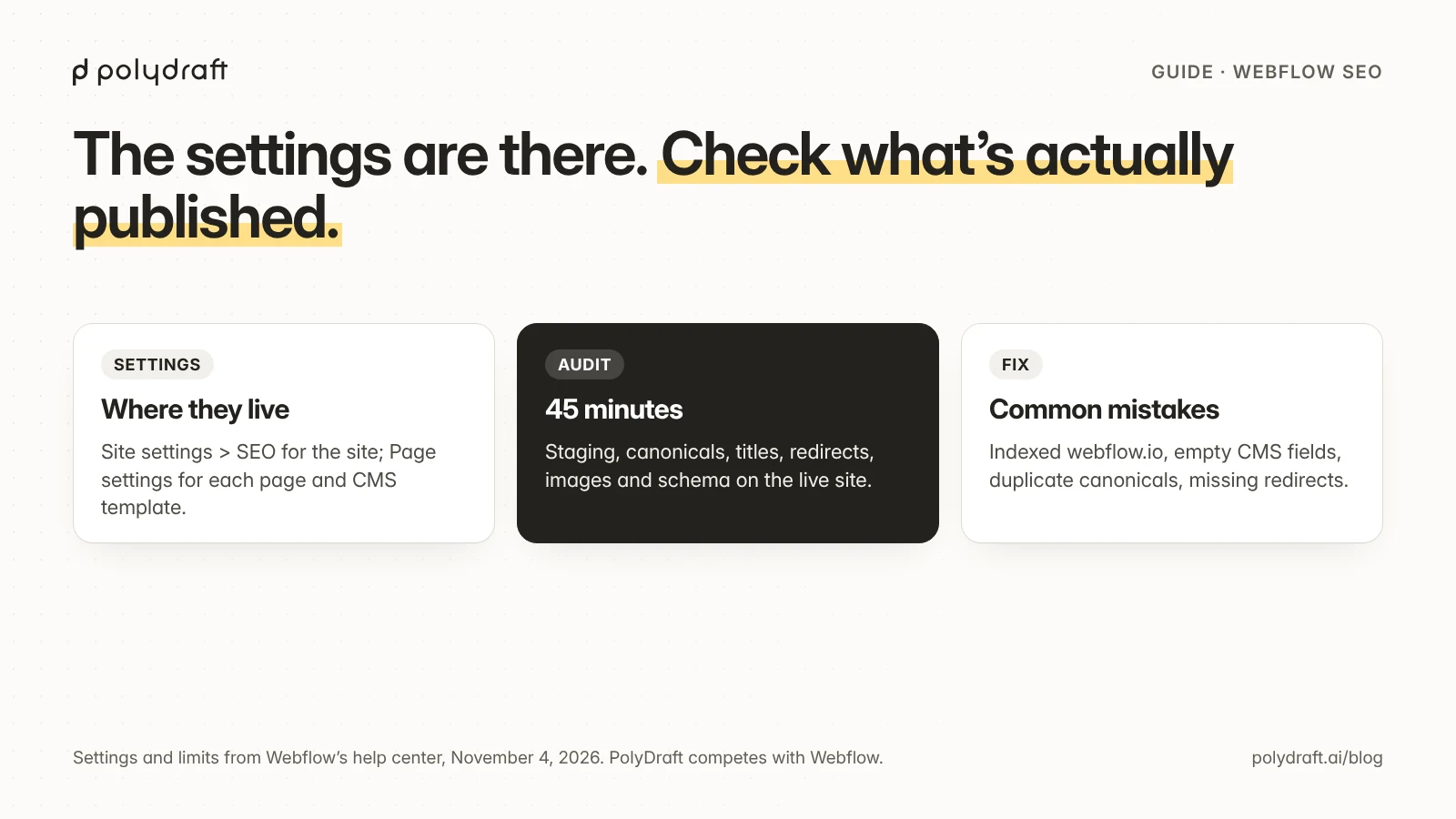
- 02 Where every Webflow SEO setting lives
- 03 A 45-minute Webflow SEO audit (checklist)
- 04 SEO for CMS template pages
- 05 Redirects without surprises
- 06 Webflow AI tools and AI search
- 07 Common Webflow SEO mistakes
- 08 When to stay on Webflow, and when to move
- 09 How we checked
- 10 Frequently asked questions
- 11 Continue with the next task
- 12 Sources
Webflow SEO covers what a business site needs: per-page titles and meta descriptions, CMS-driven SEO fields, an automatic sitemap, robots.txt and llms.txt rules, canonical tags, 301 redirects, a schema markup field, and language tags (hreflang) through Localize. As of November 6, 2026, several of those controls need a paid Site plan, or a paid Workspace on a free Starter site. Most problems are setup issues, such as an indexed staging address or empty CMS fields. We estimate the audit below takes 45 minutes on a small site.
Updated November 6, 2026: re-checked every plan requirement on Webflow's plans page, corrected our settings table and the plan we gave for AEO agents, and added sections on paid-plan SEO features and AI search.
This guide is for people who run a Webflow site. Plan requirements come from Webflow's plans page and product pages, which we read directly on November 6, 2026; menu locations come from Webflow's help center. We make PolyDraft, which competes with Webflow, so we've kept to what Webflow documents and to checks you can verify yourself.
Key points
- Most Webflow SEO settings live in two places: Site settings > SEO for the whole site, and Page settings for each page or CMS template.
- On a free Starter site, sitemap controls, robots.txt and llms.txt rules, crawler access controls and the schema field need a paid Workspace plan. 301 redirects and turning off indexing of the webflow.io staging address need a paid plan too.
- Only Premium (and the Team and Enterprise plans above it) can stop individual CMS items from being indexed.
- On CMS template pages, SEO fields should pull from collection fields. An empty field produces the same title or description on every item.
- Webflow doesn't generate responsive image variants for background images or images in rich text, so those need manual optimization.
Is Webflow good for SEO?
For the technical basics, yes. Webflow gives you control of the elements search engines read, without plugins:
- Metadata: SEO title, meta description, and Open Graph tags per page, with CMS fields on collection templates.
- Crawling and indexing: an automatic
sitemap.xmlthat updates on every publish, editable robots.txt rules, and a per-page toggle that removes a page from search and from the sitemap. Premium can also exclude individual CMS items from indexing. - Duplicate control: a global canonical URL plus per-page overrides.
- Redirects: 301 redirects with wildcards and CSV import, on paid plans.
- Structured data: a schema markup field in page settings, which Webflow AI can fill for you, plus custom code. The field needs a paid plan.
- Speed: responsive images, lazy loading, WebP and AVIF conversion, and HTML, CSS, and JavaScript minification.
- Languages:
hreflangtags generated by the Localize add-on, on pages and in the sitemap.
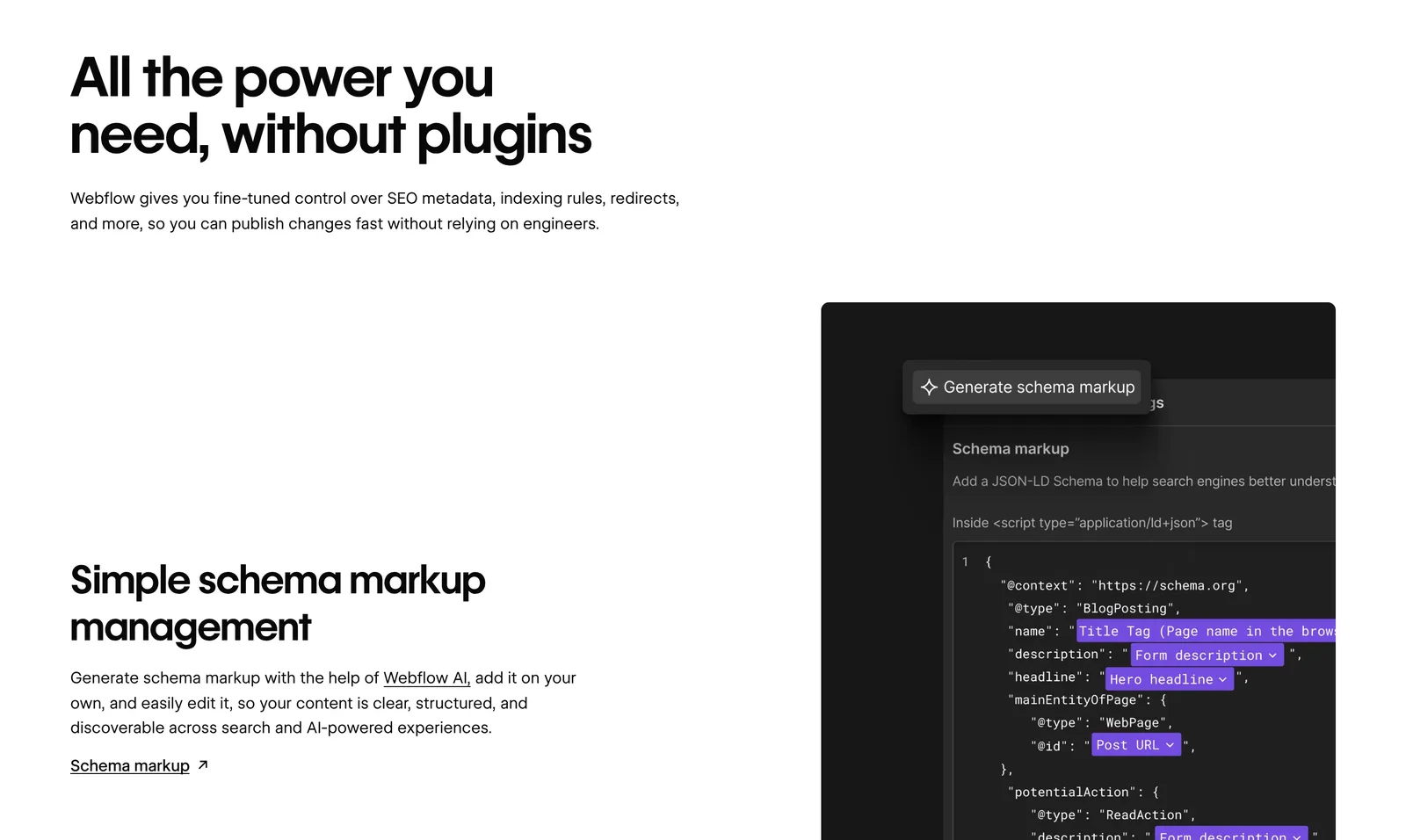
Webflow also delivers current sites through Cloudflare's network and includes SSL on every site plan. What Webflow can't do is decide your content, site structure, and internal links. That part is the same on any platform.
Where every Webflow SEO setting lives
Each setting below has a fixed place in Webflow, and the plan column follows Webflow's plans page as of November 6, 2026. "Starter site" means the free Starter site plan.
| Setting | Where in Webflow | Plan needed | What to check |
|---|---|---|---|
| SEO title and meta description | Page settings > SEO settings | Every plan, including Starter | Titles under 60 characters, unique per page |
| CMS template SEO | Page settings on the template; "Add field" | Any plan with CMS: Starter (50 items), Premium or higher | Title and description pull from fields that are filled in |
| Open Graph | Page settings > Open Graph settings | Every plan, including Starter | An image is set; on CMS templates it needs an Image field |
| Sitemap | Site settings > SEO > Sitemap | Paid Site plan, or a paid Workspace on a Starter site | Auto-generation is on, or your custom sitemap is current |
| robots.txt and crawler access | Site settings > SEO > Indexing | Paid Site plan, or a paid Workspace on a Starter site | No rule blocks pages or crawlers you want to reach the site |
| llms.txt | Site settings > SEO | Paid Site plan, or a paid Workspace on a Starter site | The file is current and loads at /llms.txt |
| Per-page noindex (static pages) | Page settings > Sitemap indexing toggle | No plan gate documented; works only with the automatic sitemap | Only thank-you, legal, or test pages are excluded |
| CMS item indexing | Per CMS item (not shown on the plans page; check Webflow's help center for the menu) | Premium or higher; not on Starter or Basic | Only items you mean to hide are excluded |
| Staging indexing | Site settings > SEO > Indexing | Paid Site plan or Workspace | The webflow.io address is set not to be indexed |
| Global canonical | Site settings > SEO > Global canonical tag URL | Every plan, including Starter | Protocol included, no trailing slash, no duplicate canonical in custom code |
| 301 redirects | Site settings > Publishing > 301 redirects | Paid Site plan; on a Starter site, only the Growth or Agency Workspace plans list it | Every changed URL redirects once, to the final URL |
| Schema markup | Page settings > Schema markup | Paid Site plan, or a paid Workspace on a Starter site | Valid JSON-LD that matches what the page shows |
hreflang |
Localize panel > SEO | Localize add-on (paid Site plan) | Generated on pages and/or in the sitemap; a custom sitemap needs the tags added by hand |
| Search Console | Site settings > SEO > Google site verification | No plan gate documented | Verified, and the sitemap submitted |
| Minification | Site settings > Publishing > Advanced publishing options | No plan gate documented | HTML, CSS, and JavaScript minified |
| 404 page | Utility pages > 404 | No plan gate documented | It helps visitors find their way and uses the /404 slug |
Which SEO features need a paid plan
On Webflow's plans page as of November 6, 2026, the free Starter site plan covers basic metadata, but crawl controls and structured data need either a paid Site plan or a paid Workspace plan. Basic is $15 a month and Premium $25 a month, both billed yearly; the cheapest paid Workspace plans are Freelancer at $16 and Core at $19 a month, billed yearly.
| Feature | Free Starter site | Basic | Premium |
|---|---|---|---|
| SEO title and meta, alt text, Open Graph, canonical tags | Yes | Yes | Yes |
| Sitemap controls, crawler access controls, robots.txt and llms.txt, schema markup | Needs a paid Workspace | Yes | Yes |
| "Improve SEO & AEO" (Webflow AI) | Needs a paid Workspace | Yes | Yes |
| 301 redirects | No | Yes | Yes |
| CMS items / collections | 50 / 20 | No CMS | 20,000 / 40 |
| CMS item indexing control | No | No | Yes |
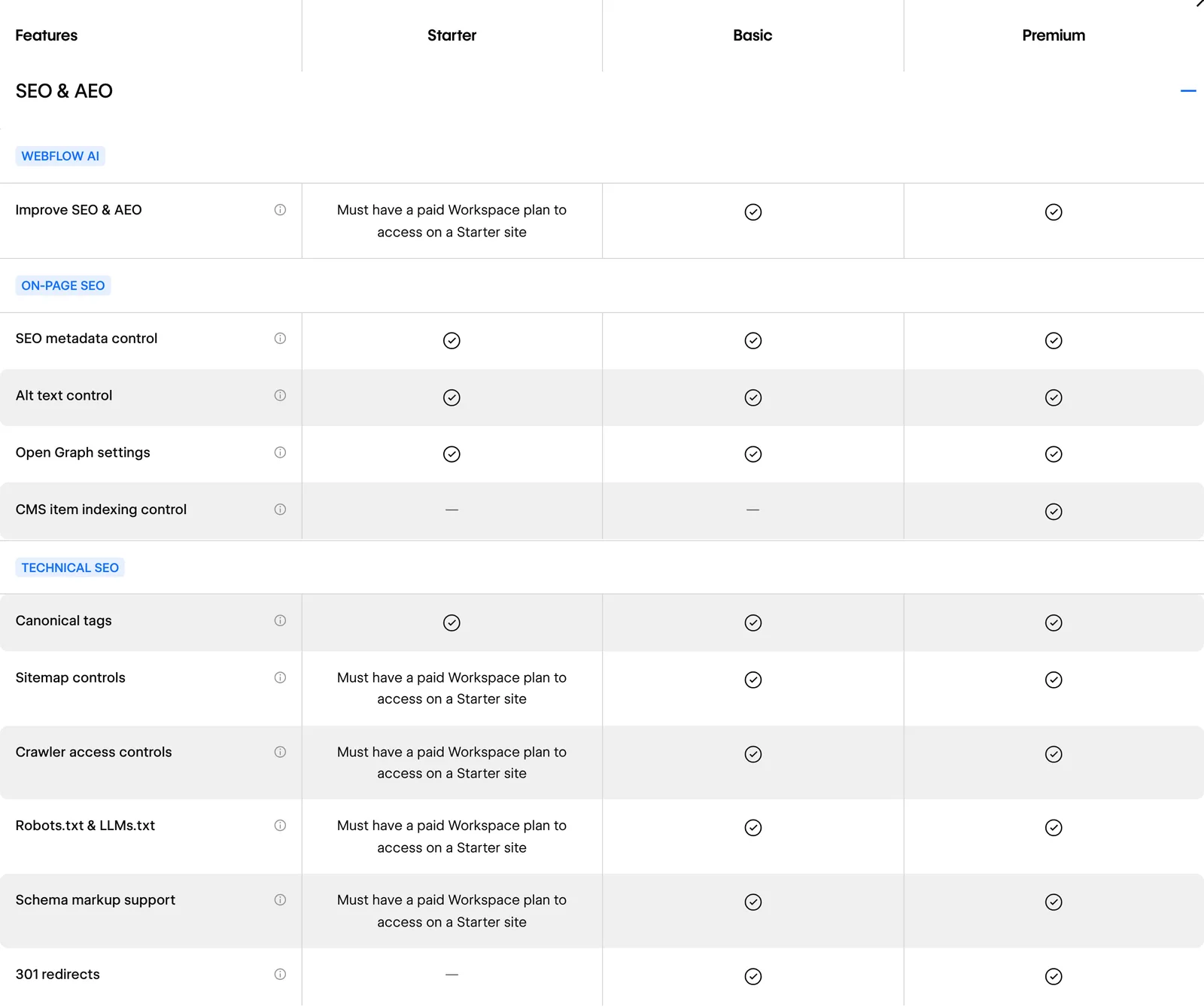
If the site is still on the free Starter plan and you're about to launch, the cheapest route to these controls is usually the Site plan you'd need for a custom domain anyway.
A 45-minute Webflow SEO audit (checklist)
Run these checks on the published site, not in the Designer. You need a browser and access to Search Console. The times are our estimates for a small site.
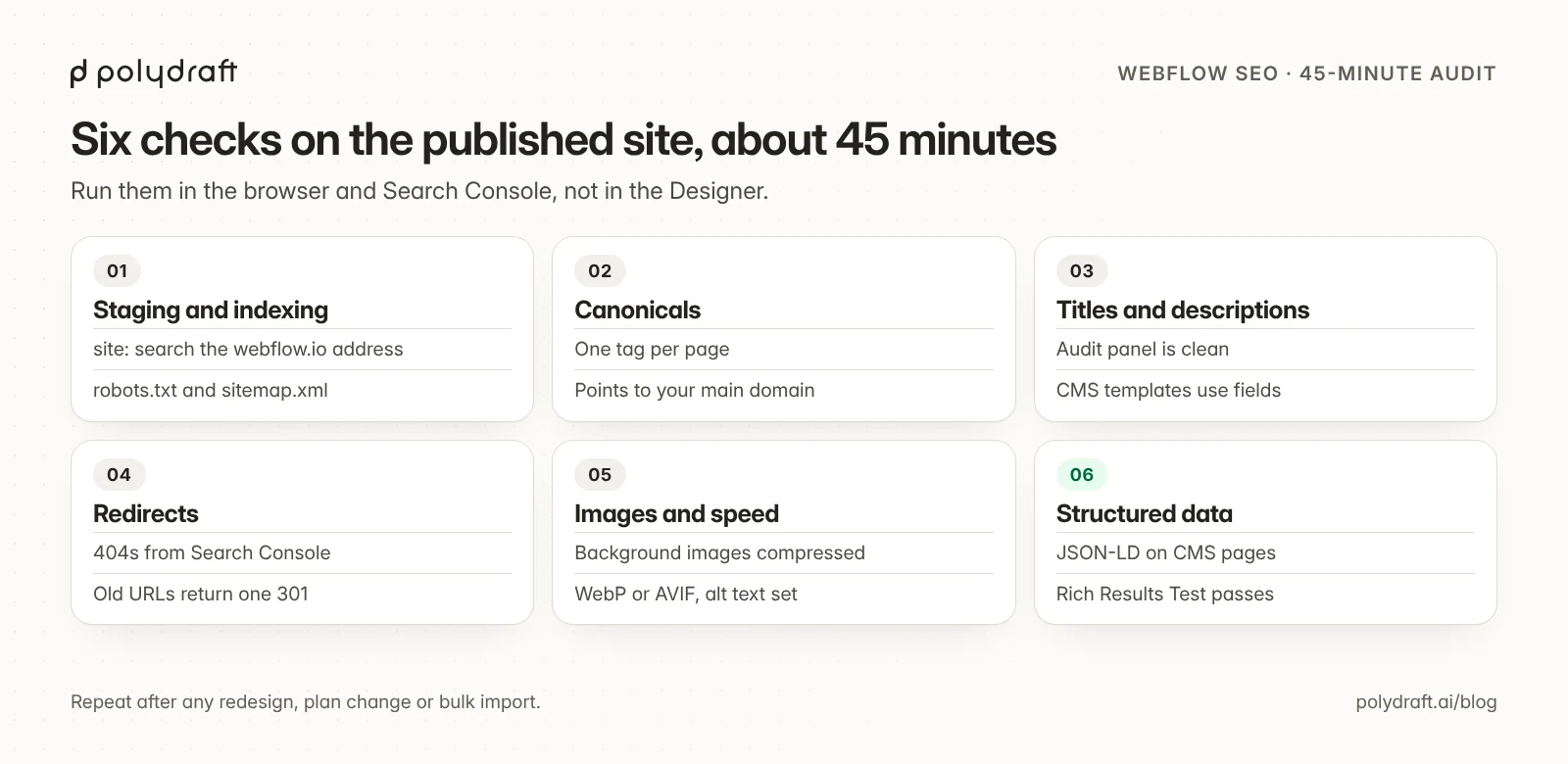
1. Staging and indexing (5 minutes)
- Search Google for
site:yoursite.webflow.io. If staging pages appear, turn off indexing for the Webflow subdomain in Site settings > SEO > Indexing. That publishes a separate robots.txt on the subdomain only. - Open
yourdomain.com/robots.txtand confirm nothing important is disallowed. If you're unsure what a rule does, check it against a robots.txt generator. - Open
yourdomain.com/sitemap.xmland confirm it lists your important pages and no test pages.
2. Canonicals (5 minutes)
- View the source of your homepage and two inner pages. Search for
rel="canonical". - Each page should have exactly one canonical tag, pointing at itself on your main domain. Webflow warns that setting canonicals in more than one place creates multiple tags, which search engines may ignore entirely.
3. Titles and descriptions (10 minutes)
- Open Webflow's Audit panel. It flags missing titles, descriptions, alt text, and schema.
- On each CMS template, open Page settings and confirm the SEO title and description use fields such as Name and Summary, not fixed text.
- Open three items from each collection on the live site and check that the titles differ.
4. Redirects (10 minutes)
- In Search Console, open the Pages report and look for "Not found (404)" URLs that used to get traffic.
- Add a 301 redirect for each one to the closest live page.
- Spot-check old URLs in the browser, including any you renamed recently. When you change a page slug in Page settings, Webflow offers a box to permanently redirect the old URL; for CMS items, add the redirect by hand.
5. Images and speed (10 minutes)
- Look for large background images and images inside rich text. Webflow doesn't create responsive variants for those, so compress them before uploading.
- Use the Assets panel to convert JPG and PNG files to WebP or AVIF. Webflow replaces the originals, and AVIF and WebP aren't supported for Open Graph images.
- Check that images below the fold use lazy loading, and that each image has alt text or is marked decorative.
- Run your top page through PageSpeed Insights and note the largest issues.
6. Structured data (5 minutes)
- View the source of a CMS item page and look for
application/ld+json. - Paste the page URL into Google's Rich Results Test and fix any errors.
- If you generated the schema with Webflow AI, check it the same way, and confirm every property describes something the page actually shows.
Repeat the audit after any redesign, plan change, or bulk content import.
SEO for CMS template pages
Collection templates power most Webflow blogs, case-study libraries, and resource hubs, and one template mistake repeats across every item. Set these once per template:
- SEO title: a pattern such as
{Name} | Brand, built with "Add field". - Meta description: a dedicated summary field, not the first line of the body.
- Open Graph image: bound to an Image field. Without one, Webflow can't set an Open Graph image for the collection.
- Slug: generated from the item name. Edit it before publishing, because changing it later needs a redirect added by hand.
- Schema: the schema markup field can fill properties from CMS fields, so one block covers every item. It doesn't support Reference, Multi-reference, or Multi-image fields. Webflow lists plain text, image, link, option, and file fields as bindable, so date properties may need custom code instead.
- Indexing: on Premium, you can keep individual items, such as thin or expired entries, out of search without unpublishing them. Starter and Basic don't have this control.
A minimal Article block for a blog template looks like this. Because the date fields may not bind in the native schema field, add this version through custom code on the template and insert the CMS fields where the braces are:
{
  "@context": "https://schema.org",
  "@type": "Article",
  "headline": "{Name}",
  "description": "{Summary}",
  "datePublished": "{Published On}",
  "dateModified": "{Updated On}",
  "image": "{Main Image}",
  "author": { "@type": "Person", "name": "{Author Name}" }
}
Check that dates come out in ISO 8601 format and that the image value is a full URL. Only mark up what the page actually shows. Google's structured data guidelines treat markup that describes hidden or different content as a violation.
Redirects without surprises
Webflow's redirect rules are simple, with a few behaviors worth knowing:
- Where they live: Site settings > Publishing > 301 redirects, on a paid plan. Redirects take effect after you publish the whole site.
- Order matters: rules run in the order they were added, oldest first.
- Volume: Webflow sets no hard cap, but recommends about 1,000 redirects at most, because every rule is added to the site's manifest. Use wildcards for patterns, such as a whole folder that moved.
- CSV import replaces everything: importing a CSV of redirects overwrites all existing ones. Export the current list first, merge it, then import.
If you're moving a site onto or off Webflow, our website migration checklist covers the full redirect map.
Webflow AI tools and AI search
Webflow now sells AI features for both building and optimizing a site, and it has added controls aimed at AI crawlers and answer engines. As of November 6, 2026:
- Webflow AI: generates copy, CMS items and schema markup, and its "Improve SEO & AEO" tool runs sitewide audits with suggested fixes. It runs on AI credits shared across a Workspace: 200 a month on the free Starter Workspace, 300 on Core and 400 on Growth. On a free Starter site, "Improve SEO & AEO" needs a paid Workspace plan.
- llms.txt and crawler controls: you can upload an llms.txt file in SEO settings, and Webflow serves it at the root of your domain. You can also allow or block search and AI crawlers. On a Starter site, both need a paid Workspace plan. Our llms.txt guide explains what the file can and can't do, and you can generate an llms.txt file to start from.
- Content-Signal header: in Site settings > SEO > Indexing, you can state preferences on AI training, search indexing, and AI answers. Webflow notes this is based on a proposed standard, not an accepted one. For crawler-by-crawler rules, see our robots.txt examples for AI crawlers.
- AEO reporting and agents: the Analyze add-on, from $9 a month billed yearly on a paid Site plan, reports AEO insights such as LLM visibility and AI agent traffic. Webflow's plans page lists AEO agents (technical and content agents, and a recommendations dashboard) on its Team plan, at $2,500 a month on an annual contract, while its AEO product page says Webflow AEO is available only to Enterprise customers. Ask Webflow's sales team which applies to you.
None of these guarantees that AI assistants will cite your pages. The basics matter more: crawlable HTML, clear answers near the top of each page, and accurate structured data. Our guide to showing up in AI Overviews covers that side.
Common Webflow SEO mistakes
| Mistake | How to spot it | Fix |
|---|---|---|
| The staging site isn't set to no-index | Staging pages appear in a site: search of the webflow.io address |
Turn off subdomain indexing in Site settings > SEO > Indexing |
| CMS SEO fields are empty | Several collection items share one title or description | Bind the template's SEO fields to Name and Summary fields, and fill them in |
| Duplicate canonical tags | View source shows two rel="canonical" tags |
Keep Webflow's canonical setting and remove the one in custom code |
| Slug changes without redirects | Search Console reports 404s for URLs that used to get traffic | Tick the redirect box when changing page slugs; add CMS item redirects by hand |
| A CSV import wiped earlier redirects | Old redirects stop working after an import | Export the current list first, merge, then import |
| Heavy background images | PageSpeed Insights flags large images | Compress background and rich-text images before uploading |
| A blog planned on Basic | No CMS collections are available | Use Premium or higher for a blog |
| SEO controls missing on a free Starter site | Sitemap, robots.txt, llms.txt or schema settings are locked | Add a paid Site plan, or a paid Workspace plan |
When to stay on Webflow, and when to move
Stay if your team is comfortable in Webflow and the audit shows setup issues you can fix. Moving platforms rarely fixes SEO on its own.
Consider moving if the reason is the business, not SEO. For example, designers have left and nobody can maintain the site, Localize's per-locale cost adds up across many languages, or you need to own and host the code. Our Webflow vs WordPress comparison and comparison of Framer and Webflow on SEO and CMS limits cover the main alternatives, and our guide to hosted builders compared by what you can export covers the all-in-one options.
Where PolyDraft fits
We make PolyDraft. Webflow is a good way to build and host a site, and the checks above keep it in shape; deciding what to publish from search and AI-search demand, writing it, linking it, and refreshing what underperforms is still your job or an agency's. PolyDraft is an AI-native website marketing system built around that work: it starts with the site's infrastructure, plans content from SEO and GEO data, and helps you keep that content current, on a site you own. As of November 6, 2026:
- Infrastructure first. Its agent researches, writes and builds a multi-page Astro site that renders HTML on the server and deploys to your own Cloudflare account. Titles, descriptions, structured data, canonicals, a sitemap, robots.txt and llms.txt come with every plan.
- Content planned from data. Sites built since November 2026 come with a content calendar in their admin: competitor keywords and question data when search data is available, otherwise questions from search results, AI-predicted sub-queries that answer engines run for your topics (GEO), topic clusters with pillar pages, and a dated publishing queue.
- Refresh from performance. When you ask, PolyDraft uses your Search Console data to flag articles with low click-through, or older articles with no impressions, as due for a refresh. This needs a deployed site with PolyDraft's Search Console access added to your property, and it doesn't run on a schedule. PolyDraft's agent doesn't publish without your approval.
- Languages and ownership. Up to 10 languages on Starter ($39 a month, access currently invite-based), 30 on Pro and 100 on Agency, with hreflang. Full code export is included on Agency. See PolyDraft's plans.
Recurring, evidence-backed recommendations of what to publish or refresh next are the direction we're building toward, not a current feature.
PolyDraft is the wrong choice if your designers want Webflow's visual control, or if you need a CMS as deep as Webflow's or a store. It doesn't import Webflow sites, and it has no built-in redirects, so you'd set those up in Cloudflare.
How we checked
On November 6, 2026 we opened Webflow's plans page, including its "Compare all Site plans" table, and its SEO, AEO and AI product pages in a desktop browser (1440 × 900, US English, not signed in), and saved the screenshots in this article. Webflow's help center blocked our tools that day, so menu locations and behaviors such as redirect order and image handling come from the help-center articles we checked through search excerpts on November 4. The audit steps and times are our own method and estimates; we didn't sign in to a Webflow site or measure rankings.
What changed since November 4:
- The settings table now follows Webflow's plans page: sitemap controls, robots.txt and crawler access, llms.txt and the schema field need a paid Site plan, or a paid Workspace on a free Starter site. New rows for llms.txt and CMS item indexing (Premium only), and a new table of what needs a paid plan.
- The AI section now covers Webflow AI credits, the Analyze add-on, and AEO agents, which the plans page lists on the Team plan. We no longer say AEO agents need an Analyze add-on.
- New screenshots of Webflow's plans comparison and SEO feature page, a rewritten PolyDraft section, and this method note.
Frequently asked questions
Is Webflow good for SEO?
For the technical basics, yes. Webflow builds in metadata, sitemaps, robots.txt, canonicals, 301 redirects, and a schema field without plugins. Redirects need a paid plan, and on a free Starter site the sitemap, robots.txt and schema controls need a paid Workspace. Results still depend on your content, structure, and setup.
Which Webflow SEO features need a paid plan?
As of November 6, 2026, a free Starter site needs a paid Workspace plan for sitemap controls, crawler access controls, robots.txt and llms.txt, the schema field and "Improve SEO & AEO". 301 redirects need a paid plan, and controlling indexing of individual CMS items needs Premium or higher.
Does Webflow create a sitemap automatically?
Yes. Webflow generates sitemap.xml and updates it every time you publish. You can switch auto-generation off and paste a custom sitemap instead. Pages with indexing turned off are left out of the automatic sitemap. On a free Starter site, Webflow's plans page lists sitemap controls as needing a paid Workspace.
How do I add schema markup in Webflow?
Use the schema markup field in Page settings, write the JSON-LD yourself or generate it with Webflow AI, or add it through custom code. On CMS templates, the field can fill values from collection fields. The field needs a paid Site plan, or a paid Workspace on a Starter site.
How do I stop the webflow.io site from being indexed?
Go to Site settings > SEO > Indexing and turn off indexing for the Webflow subdomain. Webflow then publishes a separate robots.txt on the staging address only. This needs a paid site plan or Workspace.
Does Webflow support 301 redirects?
Yes, on paid plans. Add them in Site settings > Publishing > 301 redirects, tick the redirect box when you change a page slug, or import them from a CSV file. Importing replaces all existing redirects, and Webflow recommends staying around 1,000 at most.
Can I edit robots.txt in Webflow?
Yes, in Site settings > SEO > Indexing, on a paid Site plan or with a paid Workspace on a Starter site. The file is public, so don't use it to hide private pages; use the page indexing toggle or password protection instead.
Continue with the next task
- Decide between the two leading platforms: Webflow vs WordPress
- Fix the content side on any platform: SEO for business
- Compare with another builder's settings: Wix SEO settings and checks
About this article. Drafted by an AI agent following PolyDraft's blog workflow, checked by an automated QA script, fact-checked by a separate AI agent, and approved by Vincent Chen. PolyDraft competes with Webflow. Plan requirements come from Webflow's plans page and product pages, read directly on November 6, 2026; menu locations and limits come from Webflow's help center and update notes, read through search excerpts on November 4, 2026. Screenshots of Webflow's public pages were captured on November 6, 2026, unedited apart from cropping and resizing; we didn't sign in or build test sites. The audit steps are our own method for checking those settings on a live site. Webflow changes its product often, so check its help center for current menu names. The diagrams are original illustrations made for this article.
Sources
- Webflow (checked November 6, 2026): Pricing, SEO, AEO, Webflow AI
- Webflow Help Center: SEO title and meta description, Open Graph, Sitemap, robots.txt rules, Disable search engine indexing, Canonical tags, 301 redirects, Import and export redirects, Site speed, Image conversion, Advanced publishing options, Localized SEO, Audit panel, Google site verification, Hosting overview, AEO overview
- Webflow University: Schema markup
- Webflow Help Center: Add schema markup
- Webflow: Introducing llms.txt
- Google: PageSpeed Insights
- Google Search Central: General structured data guidelines
- PolyDraft (checked November 6, 2026): Features, Pricing
Written by
Founder of PolyDraft and CEO of BlackMonolith, Inc.